1. Overview
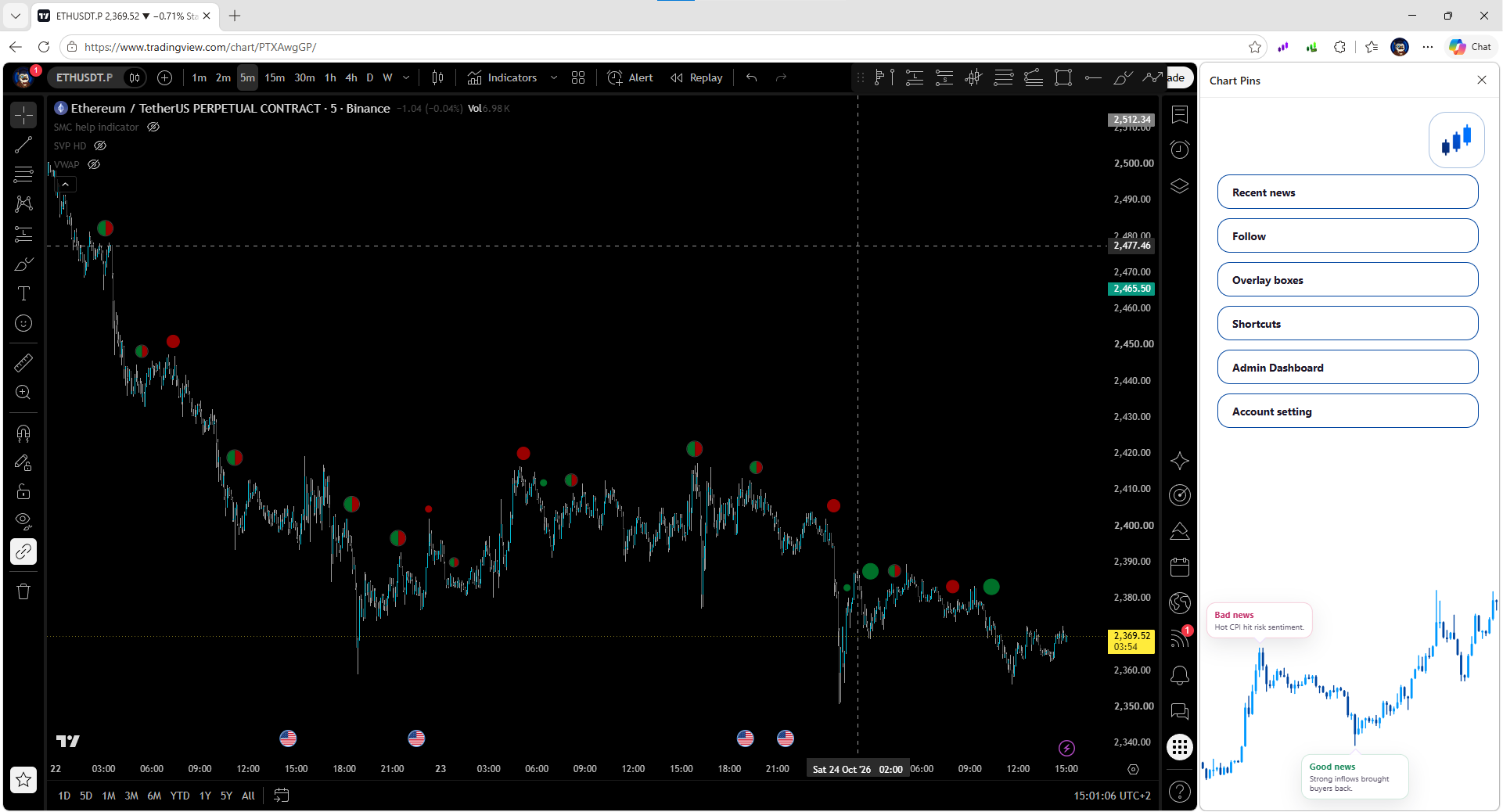
The Side Panel is the main control area for Chart Pins. It sits next to your TradingView chart and groups the most important extension sections in one place.
The screenshot on the left shows the general layout of the side panel. Each section opens a different set of controls, filters or settings.
Main sections in the side panel
- Recent News: Review the latest tracked trades and the next scheduled macro events.
- Follow: Manage Crypto / Perps wallets and Macro Follow. Social Follow and additional sources are planned for future releases.
- Overlay boxes: Adjust how boxes appear on the chart.
- Shortcuts: Check available keyboard shortcuts for faster actions.
- Account setting: Manage account actions and switch the overlay theme.
2. Recent News
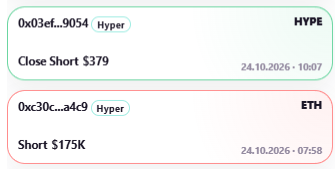
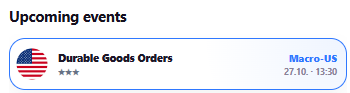
Recent News combines the latest activity with a separate Upcoming events section.
Trade cards
Each trade card shows the tracked wallet (shortened address or nickname), source exchange or its abbreviation (such as Hyper for Hyperliquid), traded market (including HIP-3 symbols), trade direction, aggregated USD volume, and execution date/time. Green identifies Long / Close Short activity; red identifies Short / Close Long activity.
How trades are merged: Trades from the same wallet, market and direction are first aggregated within each one-minute interval, with their USD values added together. Trades are merged into one card if the gap between consecutive trades is no more than 2 minutes. A gap greater than 2 minutes creates a separate card.
Filtering: Choose a time window (30m, 1h, 2h, 4h, 12h). Recent News also respects your Follow configuration — the followed wallets and their applicable market/size and display filters determine what activity is shown. It is not an unfiltered stream of all Hyperliquid trades.
Upcoming events
Each event card shows its country flag, event name, importance (stars), country label such as Macro-US, and scheduled date/time. The event list reflects your Macro Follow preferences. It does not show actual figures, forecasts or previous economic values.
Clickable cards: Trade cards link to an exchange scanner (such as Hypurrscan), where you can review the wallet’s transactions and open positions. Macro event cards open the Investing.com Economic Calendar for the relevant event date; available country and importance filters are applied where supported. These cards are links, not trade-execution buttons.
3. Follow
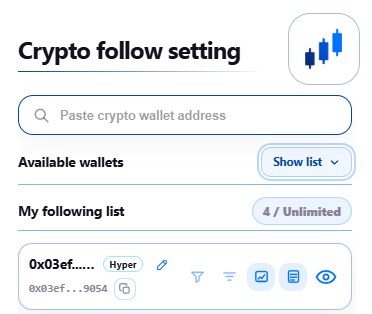
The Follow section manages which sources Chart Pins includes in your personal views. It is organized by category:
- Crypto / Perps Wallets: Search by wallet address, browse the available curated wallets, add or remove followed wallets, and configure each wallet separately.
- Macro Follow: Follow supported countries and select 2-star or 3-star economic events that matter to you. Currently available for US events.
- Social Follow: Planned for a future release; not available in the current beta.
- Additional sources: Other tracking categories may be added later.
Per-wallet controls and filters
- Wallet nickname (pencil): Edit the displayed label for easier identification.
- Copy address: Copy the full wallet address.
- Ticker filter (horizontal bars): Include only selected markets, e.g. BTC, ETH or SOL. An empty filter means all supported tickers.
- Minimum trade size (funnel): Hide trades smaller than a specified USD amount. Setting 0 means no minimum.
- Follow and view controls: The last three buttons on the wallet card are the chart icon (show or hide this wallet’s trades in the Overlay), the list icon (show or hide its trades in Recent News), and the eye icon (follow or unfollow the wallet).
The exact trading activity shown in Recent News and in Overlay can differ because each view has its own display behavior and applicable filters.
4. Overlay Boxes
Use Overlay boxes to customize the visibility and appearance of boxes and other elements on your chart. You can adjust colors, choose active or passive styling for connection lines, and change the size of boxes, circles and text to match your preferences.
These are display settings; Chart Pins does not place or manage trades.
5. Shortcuts
Shortcuts displays keyboard combinations for opening the panel and showing or hiding overlay elements.
- Show or hide all boxes, or switch particular groups on or off.
- Open or close the side panel.
- Open Recent News directly.
Shortcuts marked as Chrome-managed can be changed through the browser's extension shortcut settings. Some shortcuts may reference features that are not active in the current beta.
6. Account Setting
Account setting contains account information such as Nickname, Email and Valid until, plus the actions Change nickname, Change email, Change password and Log out.
Here you can also switch the Overlay theme between Dark and Light. Your personal account values are not displayed in this documentation.